Best Monitor Stand 2026: Comparison & Buying Guide for Your Desk
From a simple €20 riser to a professional pneumatic monitor arm — how to choose without getting it wrong.
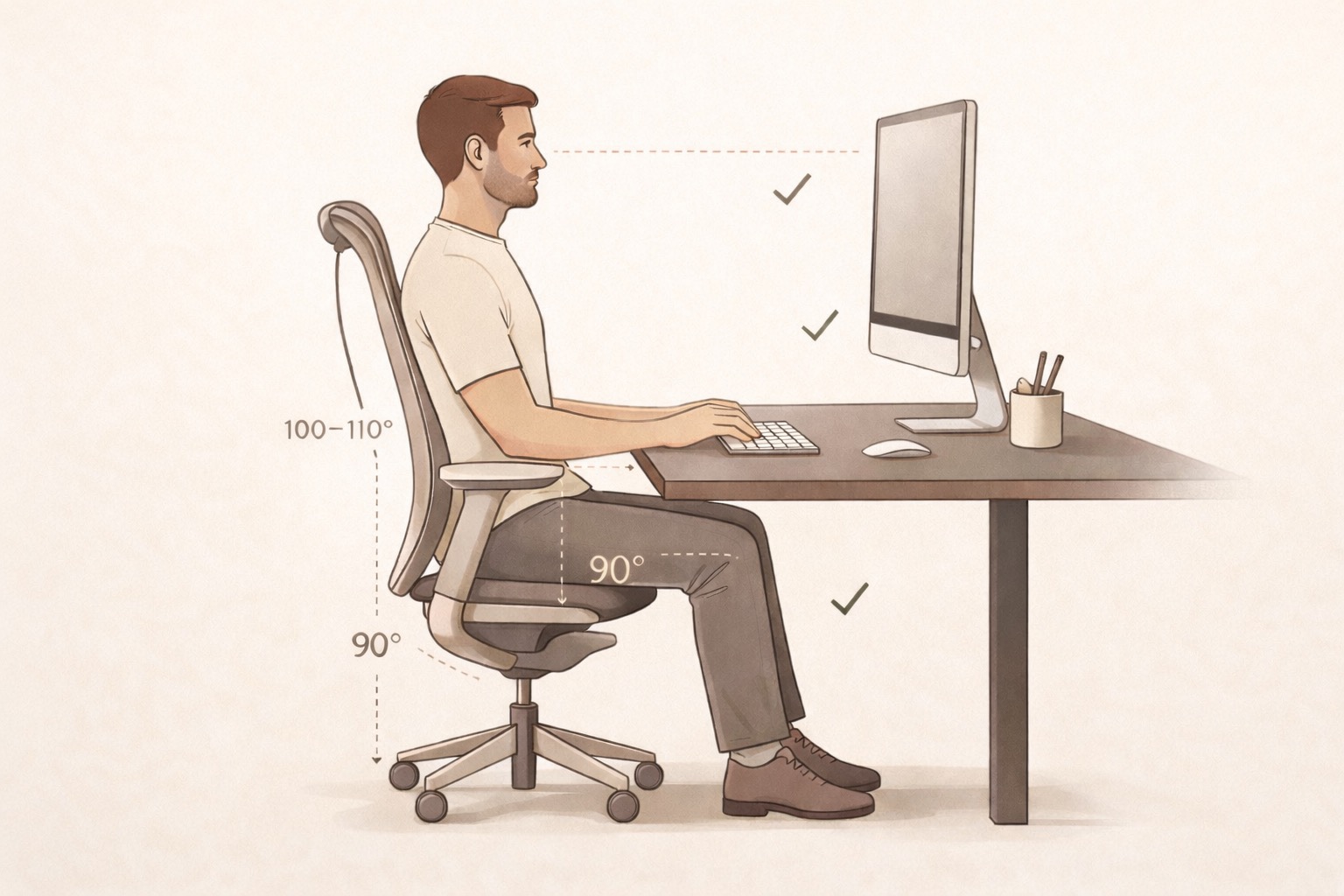
Your monitor sits directly on the desk. It's too low. You spend eight hours a day craning your neck at an angle that, according to ISO 9241 ergonomic standards, should never exceed 18 degrees downward. The result: cervical tension, headaches by end of day, and a desk surface cluttered by a monitor stand that serves no purpose other than holding your screen at the wrong height. A monitor support — whether fixed, articulated, or pneumatic — is one of the most worthwhile investments for your setup. Here's how to choose.
The three types of supports: what actually changes in practice
Before any comparisons, you need to understand what you're buying. A monitor support is not a monitor arm. And a riser is not a support. These are three different products with three distinct use cases.
The riser / fixed support. The simplest option: a rigid structure that elevates your monitor by a fixed height, typically between 10 and 15 cm. Advantage: inexpensive (€15 to €50), stable, zero adjustment. Disadvantage: not adjustable. If your desk is at the wrong height or if you share the workstation with someone of a different build, you're stuck. Ideal for a fixed workstation where you work alone and where the raised height matches your morphology.
The mechanical articulated arm support. An arm that articulates on 1 to 3 axes, attached to the desk by a clamp or grommet mount (with cable pass-through). You can adjust height, tilt, rotation, and depth. Price range: €40 to €200. This is the best-selling category, and the most heterogeneous in terms of quality. A cheap mechanical arm tends to "droop" over time — the friction torque in the joints loosens, and the monitor gradually tilts downward. A quality mechanical arm (Ergotron, Amazon Basics OEM Ergotron version) holds its adjustment for years.
The pneumatic arm. A compressed gas spring absorbs the weight of the monitor and allows you to reposition it with one hand, in a single motion. No friction to adjust, no tightening: you position the monitor where you need it, and it stays. This is the professional standard (Ergotron LX, Humanscale M8). Price range: €100 to €350. Constraint: compatible with monitors within a specific weight range, typically 3 to 9 kg or 4 to 11 kg depending on the model. A 34-inch ultrawide monitor weighing 8 kg may require a specific model.
The VESA (Video Electronics Standards Association) standard defines a pattern of 4 screw holes on the back of your monitor for mounting on an arm or support. The most common configuration: VESA 75×75 mm or VESA 100×100 mm. Turn your monitor around, look for the 4 screws in a square pattern. If they're there, your monitor is compatible with any VESA support. If there are no screws — or if they're hidden under a plastic cover — check your monitor's spec sheet. Approximately 95% of monitors ≥ 22 inches sold since 2015 are VESA compatible. The exceptions are certain iMac screens and a few low-end models with a proprietary non-detachable stand.
The criteria that actually matter
Weight capacity
This is the first number to check. Weigh your monitor (or look up its spec sheet — the weight is always listed). Choose a support whose maximum weight capacity is at least 1 kg above your monitor's weight. A support used at 100% of its capacity ages poorly: the joints loosen faster, and in the event of imbalance (cables pulled, accidental bump), the risk of a fall increases.
For reference:
- 24-inch Full HD monitor: approximately 3.5 to 5 kg
- 27-inch 2K/4K monitor: approximately 5 to 7 kg
- 32-inch 4K monitor: approximately 7 to 9 kg
- 34-inch ultrawide monitor: approximately 6 to 9 kg
VESA compatibility
Check your monitor's screw pattern: 75×75 mm or 100×100 mm. Most modern supports include an adapter for both configurations. Some high-end arms ship with a universal VESA adapter (75×75, 100×100, and even 100×200 for larger formats).
Range of motion and adjustment
A mediocre articulated arm gives you ±5 cm of height and limited rotation. A quality arm offers:
- Height: 35 to 50 cm of travel
- Horizontal rotation (pan): ±180°
- Tilt: ±15 to 20°
- Screen rotation (portrait/landscape): if you need portrait mode for reading or coding
Desk mounting type
Two options: clamp or grommet. The clamp attaches to the edge of the desk without drilling — quick to install, but can sometimes damage the edge of the desktop if the wood is soft. The grommet mount inserts into an existing hole or one drilled through the desktop — more stable for large monitors, invisible once installed. Check the thickness of your desktop: most clamps accept thicknesses from 10 to 80 mm.
Cable management
A detail that makes a real difference: quality arms integrate a cable management channel within the arm itself. You route HDMI, DisplayPort, USB, and power cables inside the arm — no visible cables. Budget supports leave cables hanging on the outside. On a minimalist desk, that's a dealbreaker.
Our selection by budget
Budget (€20–50): fixed wood or metal support
For a fixed workstation, a single user, a standard height. A solid wood or painted steel riser does the job. No adjustment, but stable and durable.
What we recommend: A wooden riser with built-in shelf (stores keyboards, hard drives) — dual function for reduced footprint. Avoid plastic supports: they vibrate and tend to slide.
What we avoid: Adjustable plastic supports under €30. The adjustments come loose under the weight within a few weeks.
Mid-range (€80–150): mechanical articulated arm
The most interesting category in terms of value for money. You get an articulated arm with integrated cable management, VESA 75×75 and 100×100 compatible, with a sufficient adjustment range for virtually all body types.
At this price point: Ergotron 45-241-026 (OEM Dell, Amazon Basics Pro) — identical to the mechanical Ergotron LX, distributed as a white-label product. Adjustable friction with an included Allen key. Cable management in the arm. Compatible 3.2 to 11.3 kg. 5-year warranty.
What we avoid: No-name clones (low-end Flexispot, generic Amazon products). The actual weight capacity is often lower than advertised, and the joints lose their friction in under a year.
High-end (€150–300): pneumatic arm
Ergotron LX Desk Mount: The reference standard. Gas spring, one-hand repositioning, clean cable management, 3.2 to 11.3 kg compatibility. VESA 75×75 and 100×100 included. Available in white, black, aluminium.
Humanscale M2.1: A solid alternative, counterbalance mechanism (no gas spring — no ageing). Slightly more compact, cables completely hidden within the arm. Ideal for small desks.
For ultrawides: Ergotron HX (Heavy) — designed for monitors weighing 5 to 19.1 kg, compatible with 34-inch and 49-inch ultrawides.
A dual arm shares the same desk mount for two monitors. Economical in mounting space and visually cleaner. Caution: the total weight capacity is divided between the two arms. Verify that each arm supports the weight of your monitor individually. The Ergotron DS100 and VIVO dual arms typically support 2×7 kg, meaning two standard 27-inch monitors. For two 32-inch monitors, look for dual arms with 2×9 kg capacity.
Common mistakes to avoid
Buying an arm without checking the monitor's weight. An undersized arm "holds" for a few weeks, then begins to sag imperceptibly. Two months later, your monitor points downward at 10 degrees and you've recreated the ergonomic problem you were trying to solve.
Mounting the arm in the wrong spot on the desk. Most arms have a reach (horizontal extension) of 40 to 80 cm. The ideal is for the monitor to sit 50 to 70 cm from your eyes once installed. Measure before tightening the clamp.
Ignoring cable management. An articulated arm without integrated cable management creates a tangle of cables that follows every movement of the screen. Over time, HDMI or DisplayPort cables endure repeated mechanical stress on the connectors — which causes intermittent image failures. If your arm doesn't include a cable channel, invest €5 in velcro ties and route the cables manually.
Neglecting the desk mount. A pneumatic arm with a 7 kg monitor applies significant torque to the mount point. Verify that your desktop is thick and rigid enough to support the clamp. Low-end particleboard desktops under 18 mm thick can deform at the clamping point. In those cases, prefer grommet mounting (bolt-through the desktop).
What it actually changes
A properly positioned monitor on an articulated arm frees up 30 to 40% of the desk surface compared to the built-in stand. For a 120 cm desk, that's the equivalent of an A3 sheet of recovered surface. But beyond space, it's posture that changes: you can reposition the monitor in one second depending on the task — closer for detail work, further for video calls, portrait for long documents.
On a white or light wood desk, an aluminium arm adds a visual element that structures the space. This isn't trivial: visual clutter on a desk increases measurable cortisol levels. A clean setup isn't an aesthetic indulgence — it's a cognitive performance variable.
Summary: how to choose
Your monitor weighs less than 5 kg and you never move the workstation → fixed wooden support, €20–40.
You need adjustments but have a tight budget → quality mechanical articulated arm (Ergotron OEM / Amazon Basics Pro), €80–130.
You want the best with no compromises → Ergotron LX pneumatic, €150–200.
Two monitors → dual arm from the same brand as your single arm, verifying that each arm supports the weight of each monitor independently.
Ultrawide monitor ≥ 34 inches weighing more than 8 kg → Ergotron HX, €200–250.
In all cases: check VESA compatibility, measure the actual weight of your monitor, and plan cable management before purchasing.
L'Étagère de Bureau Alto — a solid wood riser that elevates your monitor to the ideal ergonomic height. If you don't need an articulated arm, it's the most elegant solution for correcting your line of sight.
Le Tapis de Bureau Alto — a structuring felt and cork desk surface that completes the setup once the monitor is repositioned. The space freed by the support deserves to be treated with care.
VESA (Video Electronics Standards Association), FDMI mounting standards MIS-D, MIS-E
ISO 9241-5:1998, Ergonomics of visual display workstations — workstation layout and postural requirements
Ergotron, LX and HX product spec sheets, ergotron.com
Hedge A., Cornell University, "Ergonomic Laptop/Notebook Computer Use Guidelines", 2009